Podcasting guides
October 20, 2026


To sync Nomono audio with your camera, upload the audio from your Nomono microphones and your video file to Studio Cloud, select both, and run Audio/Video Sync. Studio matches the waveforms, corrects drift, and exports a finished video with studio-quality sound. A clap sync or waveform sync in your editing software works as a manual fallback.
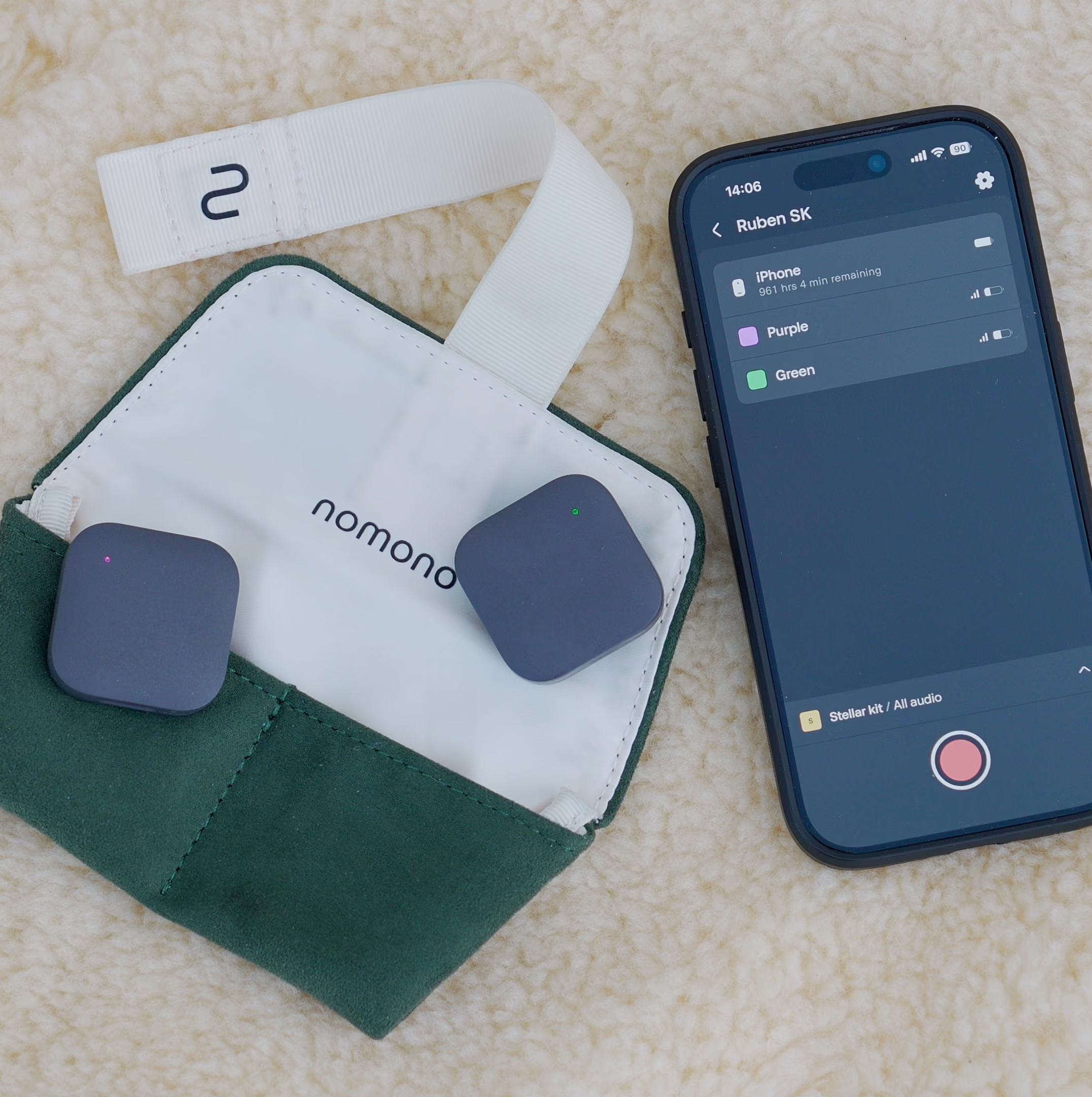
Camera and phone microphones sit too far from the speaker to capture professional sound, so creators record audio separately and marry it to the picture afterward. Video capture has become standard practice for audio-first creators: 71% of active podcast creators now produce video, according to Sounds Profitable's 2025 report. The camera handles the image while a system such as the Nomono Sound Capsule or Stellar Kit captures each voice on its own clean wireless lavalier track. The remaining job is alignment, and the fastest of the three available methods runs entirely in the cloud.
Audio/Video Sync is a cloud feature in Studio Cloud that matches professional audio from Nomono microphones with a video file from any source, applies AI enhancement, aligns the two, and exports a distribution-ready video. Nomono launched the feature in March 2026 for every Studio Cloud user, on free and paid plans alike, at no additional cost. Before the launch, the standard method was syncing in your editing software; the cloud feature now removes that step for most creators.
The whole process happens in a browser. No timecode rig, no editing-suite round trip, and no scrubbing waveforms by hand. For creators recording outside a studio, where a sync operator is rarely on hand, the cloud step absorbs the alignment work entirely.
| Method | How it works | Gear or software needed | Best for |
|---|---|---|---|
| Auto sync in Studio Cloud | Cloud waveform matching with drift correction; exports a finished video | Nomono mics plus any camera; a Studio account (free or paid) | Most creators; fastest path from shoot to published video |
| Timecode | Camera and recorder stamp every frame with a shared clock; the editor aligns by timestamp | Timecode-capable camera and recorder, sync boxes, cabling | Multi-camera broadcast and film sets with a dedicated sound department |
| Clap or waveform sync in an editor | A clap creates a spike you align manually, or the NLE matches waveforms automatically | Any camera with a working onboard mic; an NLE such as DaVinci Resolve | Editors who want to stay inside their existing edit workflow |
Choose the Studio method when speed matters and you want enhancement and sync handled in one pass. Choose editor-based waveform sync when the project already lives in an NLE with multicam timelines and existing bins. Timecode earns its complexity only on productions with several cameras and a sound recordist, which is a different tier of shoot from the one most podcast and content teams run.
A clap sync creates a shared marker on every device by producing one sharp sound on camera. Start recording on both your camera and your Nomono system, then clap once, clearly, in frame. The clap shows up as a visible action in the video and a distinct spike in every audio waveform. In your editor, line the spike in the Nomono track up with the spike in the camera's scratch audio, lock the tracks, and the take is in sync from that point forward.
Clap syncs cost nothing and fail rarely, which is why film sets used slates for a century before wireless timecode existed. Their weakness is drift on long takes: independent device clocks can slip apart by a few frames over an hour, and one sync point at the head of the take cannot correct that. Clap again at the tail so your editor can check both ends.
Editing applications such as DaVinci Resolve sync separate audio to video automatically by comparing waveforms. Select the video clip and the Nomono audio in your media pool, set the camera's onboard microphone as the reference track, and run the sync function. The software finds the matching audio fingerprint and snaps the professional track into place under the picture. Premiere Pro and Final Cut Pro offer equivalent functions.
Waveform sync in an editor needs one thing from the shoot: the camera's own microphone must have recorded usable scratch audio of the same event. If the camera mic was off, muted, or too far away to pick up the voices, there is no reference waveform to match, and you are back to clapping. Record scratch audio on every camera as standard practice. The downstream edit also benefits from cleaner source tracks, a point covered in Nomono's guide to editing for audio quality.
Timecode is unnecessary for a Nomono workflow. Traditional productions jam-sync a shared clock across cameras and recorders so every frame carries a matching timestamp, which requires timecode-capable hardware on both ends plus sync boxes and cabling. Nomono's system takes the opposite approach: the Sound Capsule and Stellar mics record clean, separate tracks, and alignment happens afterward through waveform matching, either automatically in Studio or inside your editor. Studio's drift correction handles the long-take clock-slip problem timecode was built to solve, without the hardware, so most teams can skip the expense.
Sync accuracy is a floor, and audio quality is the ceiling. Viewers forgive imperfect framing far more readily than lips that drift from the voice or dialogue buried in room noise, and audio quality measurably affects podcast growth and monetization. The Studio workflow bundles both fixes into one pass: the upload that gets synced also gets noise removal and leveling. Plan details sit on the Studio Cloud pricing page; Audio/Video Sync is included on every tier.
The easiest way to sync Nomono audio with your camera is Audio/Video Sync in Studio Cloud: upload your Nomono audio and your video file, select both, and run the sync. Studio matches the waveforms, corrects drift, and exports a finished video with studio-quality sound, with no editing software or timecode hardware required.
Yes. Audio/Video Sync, launched in Nomono Studio Cloud in March 2026, aligns Nomono audio with video from any camera or phone automatically. The feature uses waveform matching with built-in drift correction and adjusts on its own when the audio and video files differ in length, so no manual trimming is needed before you run it.
Audio/Video Sync supports MP4, MOV, MKV, WebM, OGG, and MPEG-TS video files. Those formats cover the default output of nearly every modern camera, phone, and screen recorder, so footage from a mirrorless body, an iPhone, or a webcam capture can all be synced in the same Studio workflow without conversion.
Recordings up to two hours long can be synced in Studio Cloud. Drift correction runs across the full length of the take, which matters on long recordings because independent device clocks slip apart over time. Sessions longer than two hours should be recorded in parts and synced as separate files.
No. Nomono's workflow aligns audio and video by waveform matching rather than shared clock timestamps, so timecode-capable cameras, sync boxes, and cabling are unnecessary. Studio's drift correction solves the long-take problem timecode was designed for. Timecode remains useful only on multi-camera productions that already run a dedicated sound department.
Yes. DaVinci Resolve, Premiere Pro, and Final Cut Pro all sync separate audio to video by waveform matching. Select the video and the Nomono audio track, set the camera microphone as the reference, and run the sync function. The camera must have recorded scratch audio of the same event for this to work.
No. Audio/Video Sync is included for all Nomono Studio Cloud users on both free and paid plans at no additional cost. Paid tiers, Professional at $348 and Premium at $1,188 for the first year, add hardware and further Studio capability, but the sync feature itself does not sit behind either paywall.
Studio Cloud adjusts automatically when the audio and video files differ in length. Starting the Sound Capsule before the camera, or letting it run after cut, does not break the sync. The engine finds the overlapping section, aligns it, and applies drift correction, so there is no need to trim files to matching lengths first.
Yes, and Nomono recommends it. Studio Cloud's enhancement applies noise removal and level balancing to your recording before the sync runs, so the exported video carries finished audio rather than raw tracks. Running enhancement first means the sync and the cleanup happen in one Studio pass instead of two tools.
Enjoy free express shipping to the listed locations within 2–5 business days.
 Austria
 Belgium
 Bulgaria
 Croatia
 Cyprus
 Czech Republic
.svg) Denmark
Denmark Estonia
 Finland
 France
 Germany
 Greece
 Hungary
 Ireland
 Italy
Italy Latvia
 Lithuania
 Luxembourg
 Malta
Malta Netherlands
 Norway
 Poland
 Portugal
 Romania
 Slovakia
 Slovenia
 Spain
Spain Sweden
 United Kingdom
 United States